AI Credits Guide
Credits are the usage unit for every AI feature in Talizen. Each time you ask the AI to generate, edit, or optimize something, credits are deducted based on what that operation actually cost.
Think of credits as the balance behind the AI: while you have allowance left you can keep using it, and when it runs out you either upgrade your plan or draw on your Credit Balance.
When credits are spent
Credits are spent when you submit a request to the AI. The same sentence does not always cost the same, and three things drive the difference:
The model rate. Every model card shows N× credits, and the spread between 0.1× and 1.3× is more than tenfold. See How to Choose an AI Model.
Task complexity. Building a whole site, adding a page, or rewriting a structure costs far more than editing a paragraph.
Context length. The AI reads the current conversation every time, so a long history full of unrelated turns makes each request more expensive.
| What you do | Typical cost |
|---|---|
| Create a site or a new page from one prompt | Charged by site size, page count, and how complex the generated content is. This is the most expensive kind of operation. |
| Add a section or rewrite a page structure | More than a small copy edit, usually close to generating a new page. |
| Edit copy, swap an image, adjust spacing | Very small when the scope is clear, and close to the floor with a cheap model. |
| Rewriting, translation, SEO optimization | Charged by text length and how much you ask it to cover. |
| Anything involving image understanding or visual revision | Usually higher than plain text work of the same length. |
| Direct editing (double-click a component and type) | Does not go through the AI, so it costs nothing. |
Where to check your balance and usage
The bottom of the left sidebar always shows this month's usage, in the form Used 0 / 1800 monthly credits. For the detail, open Subscribe in the left nav:
Current Plan — your plan, its price, and the renewal date.
Usage — daily and monthly usage, plus the time your monthly allowance resets.
Credit Balance — credits outside your plan allowance, drawn on once the plan limit is exceeded.
Credit History — every deduction, with the credits spent, the pay mode, the session and project it belongs to, and when it happened. If spend looks wrong, reconcile it here session by session first.
Plans and allowances
| Plan | Price | Credits per month |
|---|---|---|
| Free | $0 / month | 40 |
| Pro | $12 / month | 700 |
The free plan also includes an unlimited daily limit, a 2 MB maximum upload size, 1 GB of file storage, and 3 projects. Subscriptions are paid through Stripe and can be upgraded or managed at any time on the Subscribe page. Your own page is the authority on price and allowance; there is more detail on the pricing page.
How to spend fewer credits
Credit spend tracks the context the AI has to read, understand, and work through. The clearer the task, the tighter the scope, and the less unrelated history it carries, the more likely the AI gets it right the first time.
1. Start a new conversation for an unrelated task
When two tasks share no context, click the + in the top right of the chat panel to start a new conversation. If you just finished reworking the home page and now want an unrelated contact page, start fresh.
A new conversation no longer carries the old task's page analysis, failed attempts, and unrelated instructions. That saves the cost of re-reading all of it, and keeps stale information from steering the new task.
2. Select exactly the element you want changed
If you only want to change one section, button, image, or line of text, select it on the canvas first and then ask the AI. That tells the AI directly: only this piece is in scope.
A precise selection saves the AI from hunting through the whole page, and cuts the extra spend that comes from editing the wrong place, disturbing other sections, and retrying. If the component supports direct editing, double-clicking it is cheaper still, because direct editing skips the AI entirely.
3. Compact the context when it gets long
When the next task is related to the current conversation but a lot of unrelated work came before it, compact the context instead of starting over. The brain icon at the top of the chat panel shows how much context is in use and lets you run Compact context yourself. Talizen also compacts automatically at 80%.
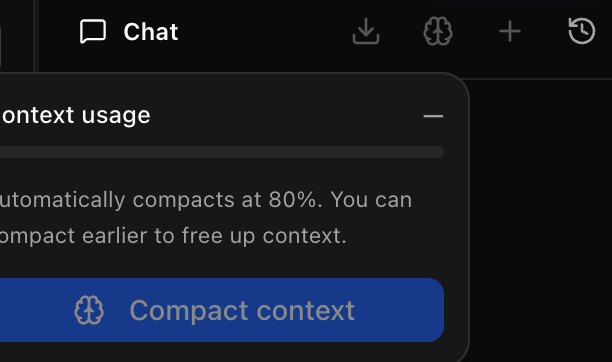
Compacting keeps what is relevant to the current task and drops the weight of unrelated history, so the rest of the conversation stays lighter and more focused.
4. Use a cheap model for small changes
A well-scoped small edit is usually something a 0.1× model gets right, and there is no reason to pay the baseline rate for it. See How to Choose an AI Model.
5. Switch models instead of retrying
When the same model misses several times in a row, switching to another one is usually cheaper and faster than three more attempts.
FAQ
Do credits refill on their own?
Your plan's monthly allowance resets each cycle, and the reset time is shown on the Usage card of the Subscribe page. Credit Balance is a separate pool, used to keep going after the plan allowance is exceeded.
What happens when I run out?
Upgrade your plan on the Subscribe page, or keep going on your Credit Balance.
The spend does not match what I expected
Start with Credit History on the Subscribe page and identify which operations were charged, by session and project. If it still looks wrong, contact us with the time, the project, and what you were doing.